Extract tracking numbers from shipping label files
When a label batch is a multi-page PDF, a folder of images, or both, manually opening each label and copying the tracking number is slow. Shipping Label Scanner scans full-page labels, detects multiple barcodes, and lets you copy tracking numbers in one workflow.
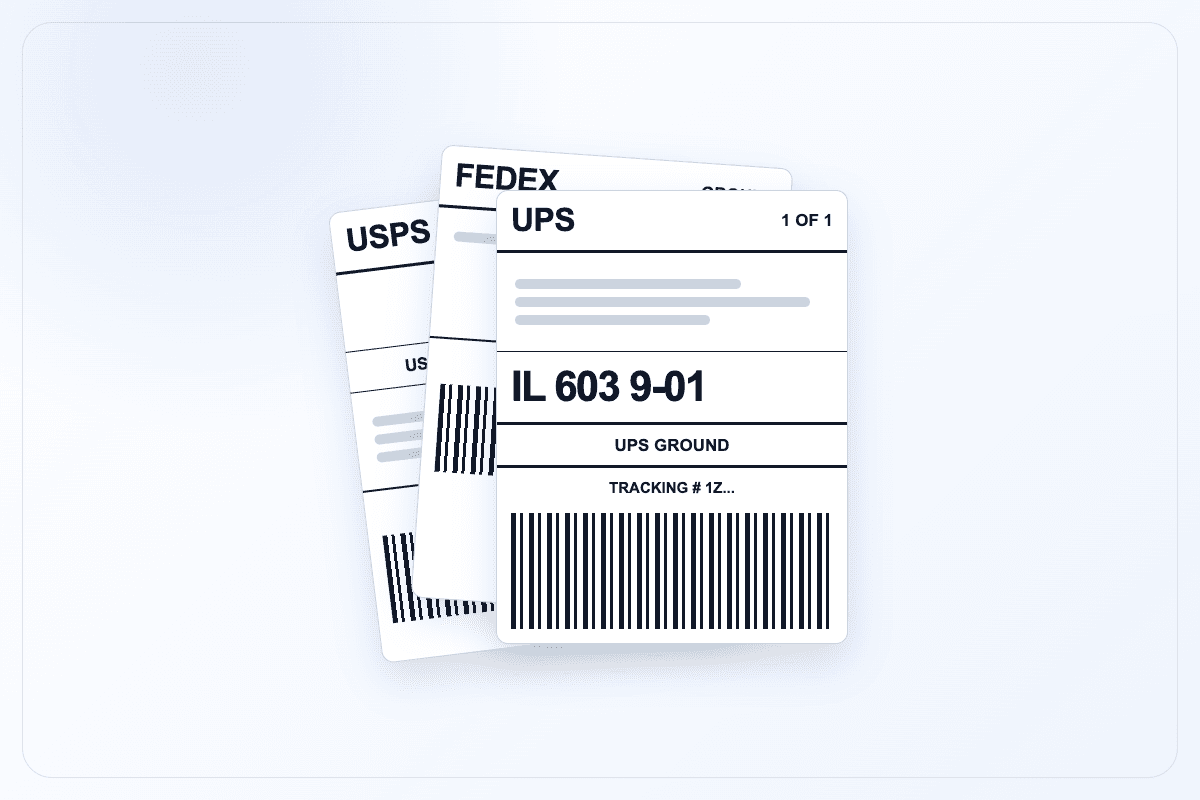
Upload multi-page PDFs, single images, multiple images, or mixed batches.
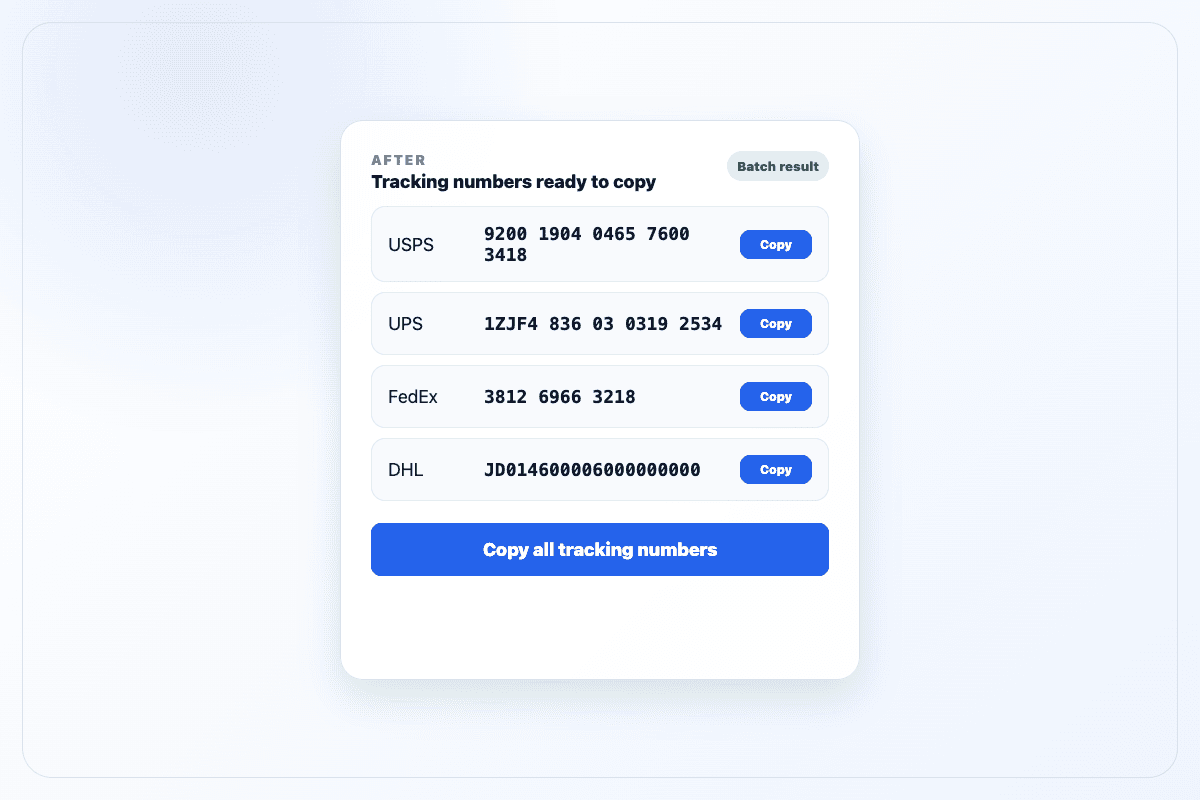
The result list shows scanned barcode values and highlights tracking numbers.
Use single-copy for checking a page, or copy all results when processing a batch.
Most barcode scanners are built for cropped barcode images, not full shipping label batches.
A shipping label may include a tracking barcode, routing barcode, QR code, marketplace code, or warehouse code on the same page. If the tool only scans a cropped barcode area, the user has to screenshot the right region first.
Many online barcode scanners also expect image files only. But real label batches often arrive as multi-page PDFs, individual label images, or a mix of both.
Shipping Label Scanner is useful when the job is not to edit the label, but to read the label: scan each page, list detected barcodes, and make tracking numbers easy to copy.
On a normal computer, the workflow is fast enough for everyday batches: small jobs finish in seconds, and larger label PDFs can still be processed without opening every page by hand.
Before and after
First check the original file, then confirm the processed result is ready for the next workflow.
Upload multi-page PDFs, single images, multiple images, or mixed batches.
The result list shows scanned barcode values and highlights tracking numbers.
FAQ
Yes. Upload the PDF and scan the pages. The tool lists detected barcode values and extracts tracking numbers for copying.
Yes. The workflow supports PDF files and common image files, so it can handle a single label image or a batch of images.
No. The scanner is designed for full-page shipping labels and can detect multiple barcodes on the page.
No. This extracts tracking numbers from label files. Use the carrier or marketplace system to check shipment status.