USPS Label Scanner
Upload USPS shipping label PDFs or images, scan barcodes on the full label page, and export cleaned tracking numbers to CSV.
Need the text around the barcode?
Extract custom fields from every label
Capture order numbers, SKUs, postal codes, or other text from the same position on each PDF label.
How to scan shipping labels
A general walkthrough for label PDFs and images, shared across all carrier scanners.
Upload labels
Choose a label PDF or image. Keep the full barcode visible.
Scan and review
Scan the labels, check barcode positions, and review the recommended tracking numbers.
Copy or export
Copy the tracking numbers or download CSV results for your batch.
How to scan a USPS label: try this example
Use this USPS Ground Advantage sample to follow the complete workflow: upload a label image, check its tracking number, and export the result.
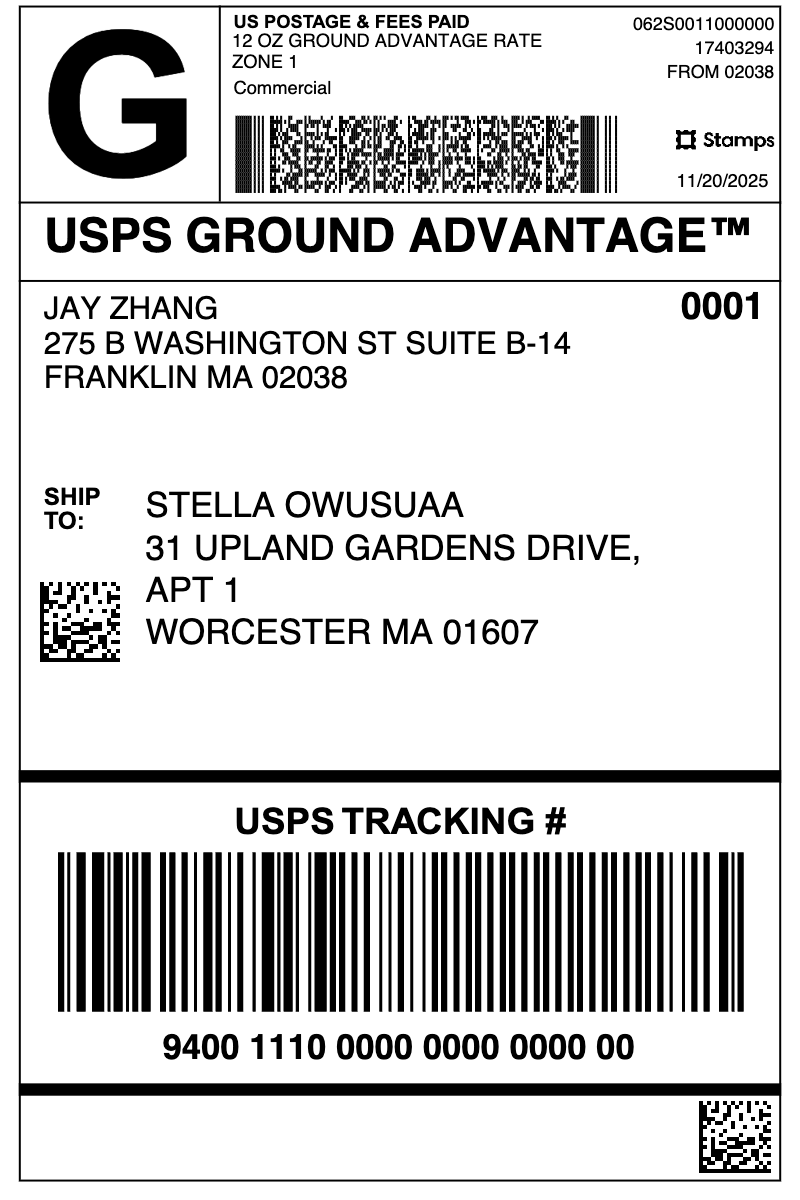
Tracking number from this sample
9400111000000000000000
This image was tested in AutoShipFlow: 3 barcodes were detected, including GS1-128 and GS1 Data Matrix. All three produced the same tracking number.
Upload the full label
Download the sample PNG, then choose “Upload PDF or image” in the scanner above. You can also use your own USPS label PDF or image. Keep the complete barcode visible.
Scan and check the tracking number
Choose “Scan labels”. For this sample, compare the result with the number shown here. Select a barcode row to see its location on the label.
Copy the number or download CSV
Copy the tracking number, or download the CSV from “All pages”. For a multi-page PDF, review each page’s result before using the numbers for support or reconciliation.
Why does one USPS label contain several barcodes?
In this sample, the long tracking barcode and two square Data Matrix codes lead to the same tracking number. The scanner finds 3 barcodes but recommends one tracking number for the page. Other USPS layouts may contain different codes or values, so check the highlighted locations and results.
Printed number, barcode data, and tracking number
The printed number in this sample is “9400 1110 0000 0000 0000 00”. The copyable result removes the spaces. Encoded barcode data can also contain routing or other fields; compare the extracted tracking number with the label instead of treating every raw barcode value as a tracking number.
If your USPS label does not scan
Try the original PDF or a sharper image instead of a compressed screenshot. Include the entire barcode and the white space around it, and avoid glare or blur in photos. If no number is found, inspect the label before copying a different barcode value. Scanning reads the label; it does not verify postage or retrieve live delivery status.
Scan USPS shipping label barcodes and extract tracking numbers
USPS shipping labels, USPS Ground Advantage labels, and USPS label PDFs often include tracking numbers inside Code 128, GS1-128, Data Matrix, or QR Code symbols. Upload the full PDF page or label image instead of cropping barcode areas manually, then review the detected codes and the recommended tracking number.
How to extract USPS tracking numbers from a label
If you need USPS tracking numbers, USPS-style GS1-128 values, and USPS Data Matrix codes, scanning the encoded barcode data is usually more reliable than OCR text extraction. The scanner reads PDF or image labels, highlights barcode positions, and exports one recommended tracking number per page with the raw barcode value for checking.